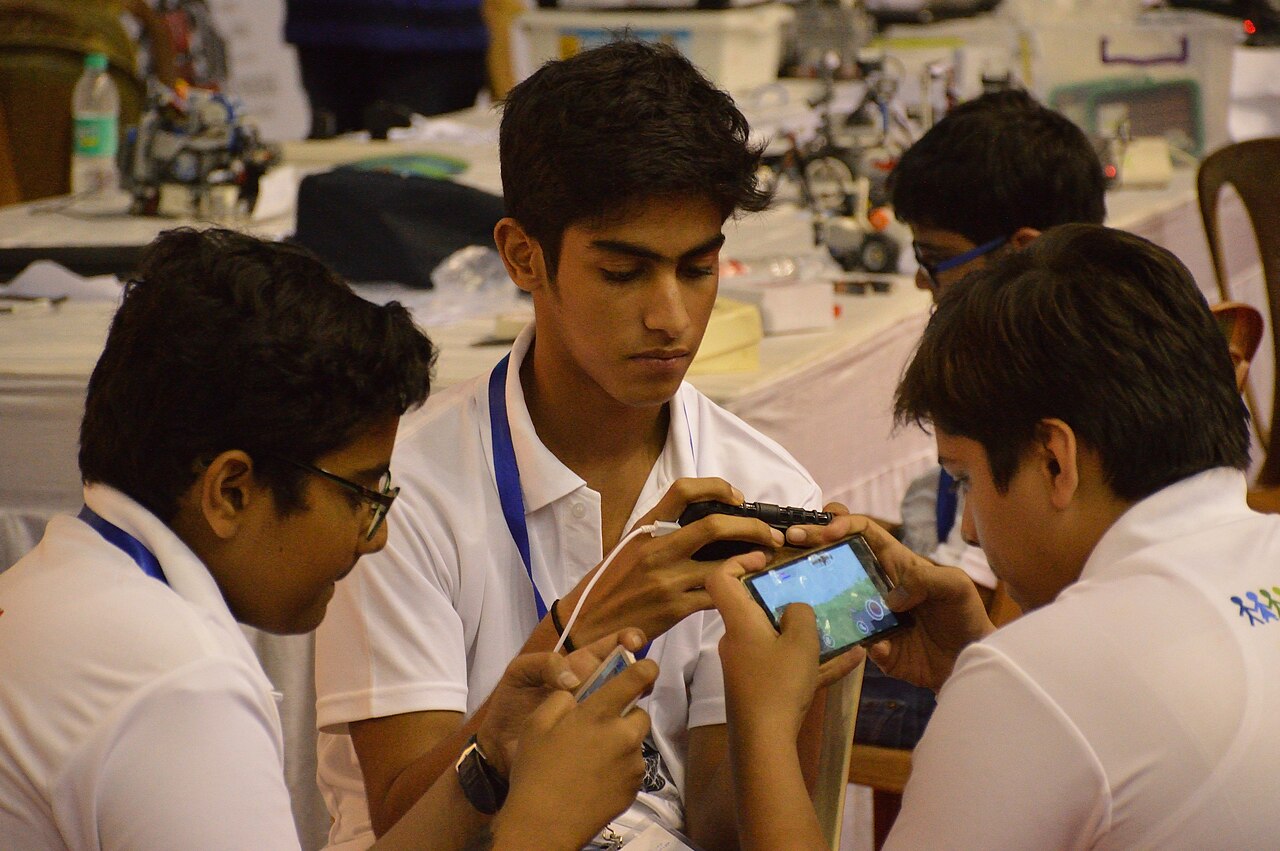
Many parents of teenagers will know this moment: you walk into the room at 11 pm, your child is "studying", and the phone screen goes dark a little too quickly.
The questions of children and social media has now reached the Supreme Court. On 29 September 2026, a bench led by Chief Justice Surya Kant asked the Centre to consider statutory rules barring under-18s from creating social media accounts, saying self-declaration of age is not enough. The government told the court it was ready to act, and the South China Morning Post reported on 16 October that a new law is being planned. Nothing is in force yet, and any law will take time.
Meanwhile, your child's phone already has free parental controls. This guide shows you how to set them up on Android, iPhone and YouTube, and, just as important, how to do it without starting a war at home.
Why this matters for Class 9–12 students
Phones are now part of school life. A 2022 IAMAI–Kantar survey, cited by Brut, found that nearly 90% of children aged 14 to 16 have a smartphone at home, and about 76% use it for social media. The same phone is used for online classes, PDFs and doubt videos, so taking it away completely rarely works.
What works better is a phone with sensible limits, which your teen helped agree to. Parental controls are a tool for that agreement, not a replacement for it.
Android: Google Family Link
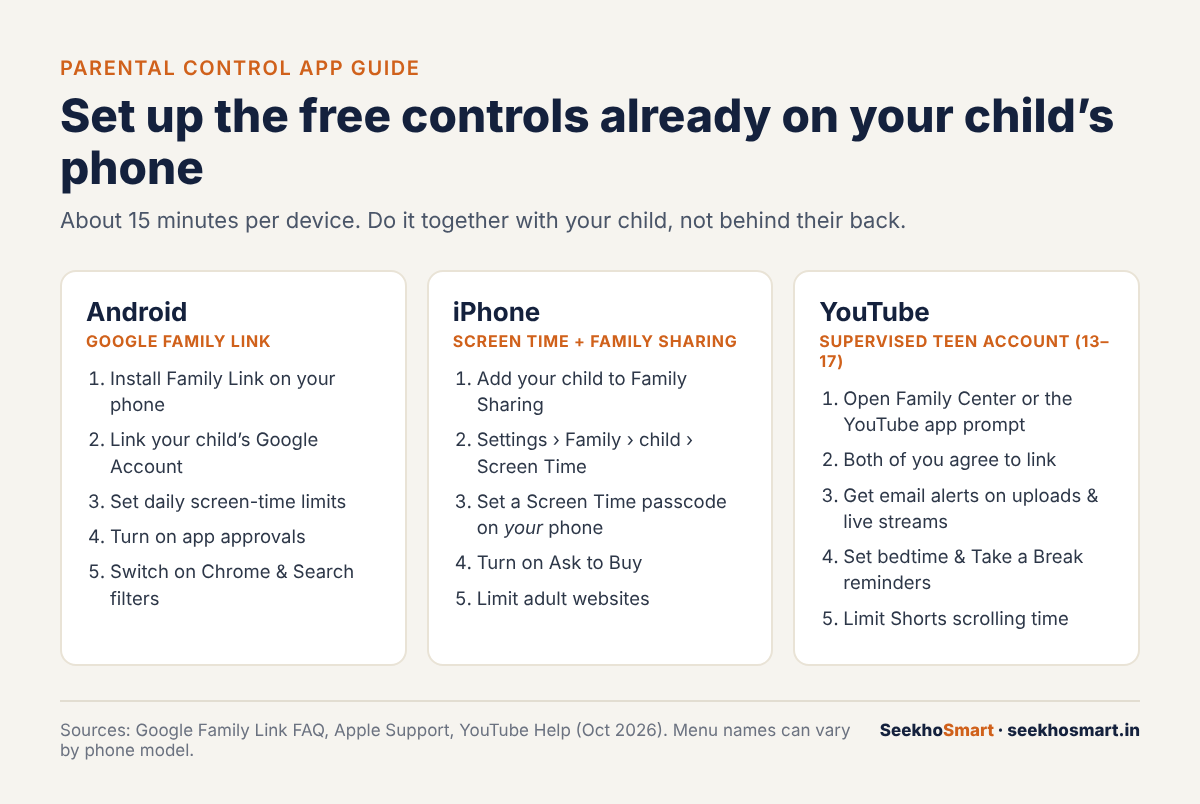
Family Link is Google's free parental control app. According to Google's Family Link FAQ, on Android it lets you:
- manage the apps your child can use,
- filter Google Search, Chrome and YouTube,
- set screen-time limits.
How to set it up
- Install Family Link on your own phone. It works on Android 5.0 or later, and on iPhones with iOS 11 or later. You can also manage settings from a web browser.
- Link your child's Google Account. Google recommends Android 7.0 or later on the child's phone. Setup takes about 15 minutes.
- Set a daily screen-time limit and turn on app approvals, so new apps need your yes first.
- Turn on the Chrome and Search filters. Google itself says these filters are "not perfect", so treat them as a safety net, not a wall.
For teenagers
Google's FAQ says that teens aged 13 to 17 need a parent's consent to stop supervision, while a parent can stop supervision at any time. Most Class 9–12 students fall in this age group, so the controls stay in place unless you agree to remove them.
iPhone: Screen Time and Family Sharing
Apple builds parental controls into every iPhone through Screen Time. Apple's support page lists three steps:
- Set up Family Sharing and make sure your child has their own Apple Account, not a shared one.
- Update every device to the latest software.
- On your own iPhone, go to Settings › Family › [your child's name] › Screen Time and follow the steps.
Apple recommends you set the Screen Time passcode on your device, not your child's, so they cannot simply change it.
Three settings worth turning on
From Apple's parental controls guide:
- Ask to Buy: Settings › Family › your child › Apps & Websites › Restrictions › Ask to Buy. Downloads and purchases then need your approval.
- Website filter: Under Apps & Websites › Restrictions, tap Filtering under Websites and choose Limit Adult Websites.
- Content ratings: Under Content & Privacy Restrictions, set age ratings for apps, films and music.
YouTube: supervised teen account
YouTube is often the biggest time sink, and also a real study tool. For teens aged 13 to 17, YouTube offers a supervised teen account. According to YouTube Help:

- Either you or your teen can start it, through Family Center or prompts in the YouTube app, but both of you must agree before it turns on.
- You see a summary of their channel activity, such as how many videos they have uploaded and how many comments they have posted.
- You get email alerts when they upload a video or start a live stream.
- You can set Take a Break reminders, bedtime reminders and a limit on Shorts scrolling.
Either of you can switch supervision off at any time, which is why this one works only with your teen's cooperation.
Make the rules first, then switch on the controls
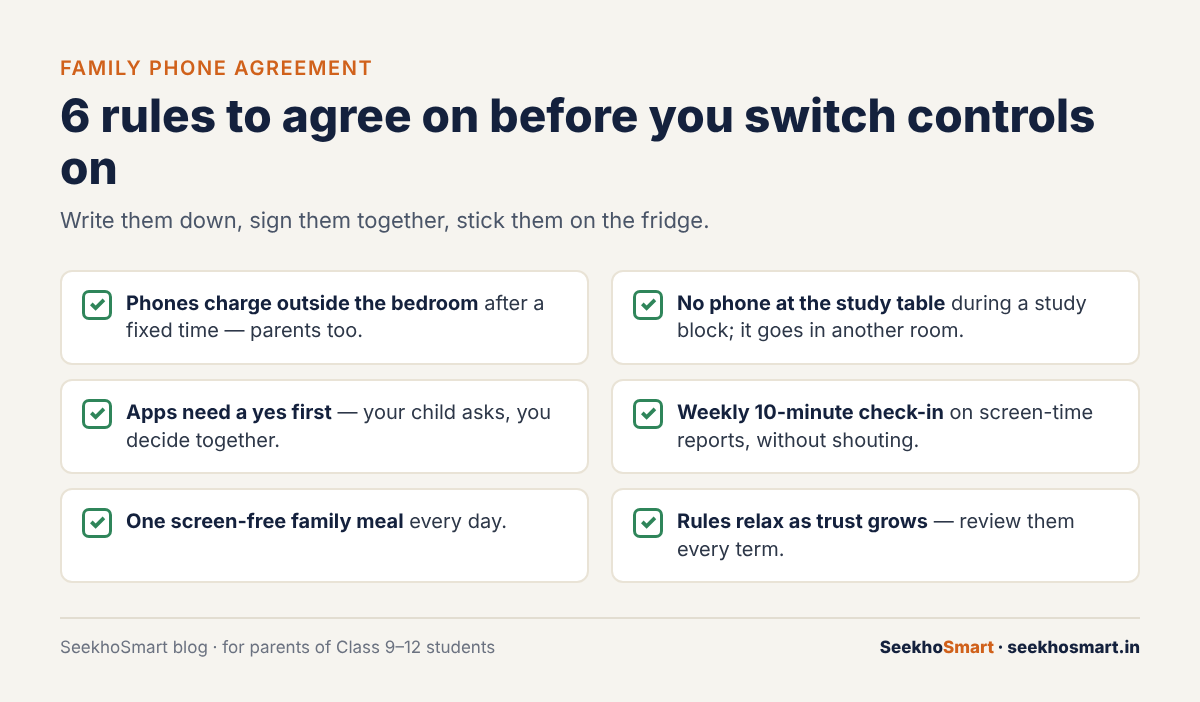
Controls set up secretly usually get found, bypassed or resented. Sit down with your child for 20 minutes and agree on the rules together. Then set up the controls to match what you both agreed.
A simple family phone agreement
- Phones charge outside the bedroom after a fixed time, and parents follow this too.
- No phone at the study table during a study block.
- New apps need a yes first.
- A weekly ten-minute look at the screen-time report, calmly.
- One screen-free family meal every day.
- Rules relax as trust grows, reviewed every term.
How to talk about it with a teenager
- Start with your worry, not their fault. "I'm worried you're not sleeping enough" works better than "You're always on that phone."
- Explain the controls openly. Show them what you can and cannot see. Teens accept limits better when there are no surprises.
- Keep study apps open. If the phone is needed for school work, make sure those apps are not blocked or counted against their limit.
- Lead by example. If you scroll at dinner, the rule will not survive a week.
Common mistakes parents make
- Blocking everything on day one. Your child will find a workaround. Start with sleep time and app approvals, then add more.
- Using controls instead of conversations. Controls cannot tell you why your child is unhappy or stressed.
- Never reviewing the rules. A Class 12 student preparing for boards needs different limits from a Class 9 student.
How SeekhoSmart helps keep phone time useful
Parental controls decide how much time your child spends on the phone. SeekhoSmart helps make the study part of that time count. It gives your child an adaptive daily study plan with a fixed set of NCERT-aligned questions each day, so a short focused session replaces aimless scrolling. Streaks and XP show you at a glance whether they practised today, so you can check consistency without nagging or looking over their shoulder. On an iPhone, you can add it to Always Allowed in Screen Time so study time does not eat into their limit. It works in Hindi or English, and it is free to start.
Try SeekhoSmart free with your child → seekhosmart.in
Frequently asked questions
Which is the best free parental control app for Android?+
Google Family Link is free and built for Android. It lets you set screen-time limits, approve apps and filter Chrome, Search and YouTube.
How do I set parental control on iPhone?+
Set up Family Sharing, then on your own iPhone go to Settings › Family › your child's name › Screen Time. Set the Screen Time passcode on your device, not your child's.
How do I put parental control on YouTube for a teenager?+
For teens aged 13–17, use a supervised teen account through Family Center or the YouTube app. Both you and your teen must agree to link accounts.
Is social media banned for children under 18 in India?+
Not yet. On 29 September 2026 the Supreme Court asked the Centre to consider statutory rules, and the government said it was ready to act, but no law was in force as of 19 October 2026.
- Supreme Court, Centre move to bar minors from social media accounts — The Quint
- India's proposed social media ban for under-18s wins parents' backing — SCMP
- Social media ban for children: Karnataka and Andhra Pradesh — Brut
- Family Link FAQ — Google
- Use Screen Time to manage your child's iPhone or iPad — Apple Support
- Use parental controls on your child's iPhone or iPad — Apple Support
- Supervised experiences for teens — YouTube Help
- SeekhoSmart (infographic)
- SeekhoSmart (infographic)
- John Onaeko / Unsplash
- Frank Ching / Unsplash